The earlier article focused on a really nasty bug with the compiled bindings ignoring the FallbackValue when the binding path didn’t resolve.
It now seems that Microsoft finally fixed this bug on the Windows 10 SDK Preview Build 17069, and this fix will eventually make it’s way to the next stable release of the Windows 10 SDK!
There is, however, a small requirement to make this work: the compiled binding expression must have the FallbackValue set.
To better understand it, please check this line of code taken from the example in the part II article:
I have taken a break from UWP development, and for the last couple of weeks I have been working mostly on WPF projects.
You know, that “old” XAML technology that started back when Windows XP was still a thing!
The interesting bit is that all my previous experience developing for Windows Phone did give me a lot of knowledge on how to write performant non-blocking code - and I am still learning something new every day!
These are some of my personal coding tips to help keep your app as responsive as possible!
The above code sample will run on the UI thread, and as it takes a while to run the MyLongRunningOperation method, it will make the app unresponsive until it finishes.
This is a perfect example of what CPU bound code is: code that should execute on a separate thread as to avoid blocking the UI thread while it runs.
There are a few ways to fix this problem and the easiest one is to just use Task.Run.
var total =await Task.Run(()=>MyLongRunningOperation());
ResulTextBlock.Text = total.ToString();
}
On the above code sample, we wrapped the call to MyLongRunningOperation method with a Task.Run that will force it to execute on a new separate thread, and then awaited for it to complete.
Note: Libraries should not lie about what they are doing! The UI thread is the only one that needs the asynchronous API, so it should be up to the end developer to decide when to use this, not 3rd party libraries ones!
Avoid using task.Result or task.Wait()
If use task.Result or call task.Wait() you will be blocking the current thread until that task completes, which is not ideal especially if the thread is the main UI thread!
A particular situation I see people doing this is for constructors; here’s an example:
publicclassTestClass
{
privateint _initialValue;
publicTestClass()
{
_initialValue =GetInitialValueTask().Wait();// don't do this!
}
publicintGetInitialValueDoubled()
{
return _initialValue *2;
}
// other code...
}
The whole point of the .NET asynchronous model is to use the async and await keywords!
To avoid this issue, one could write the code like this:
publicclassTestClass
{
privateTask<int> _initialValueTask;
publicTestClass()
{
_initialValueTask =GetInitialValueTask();// store the async task
}
publicasyncTask<int>GetInitialValueDoubled()
{
varvalue=await _initialValueTask;
returnvalue*2;
}
// other code...
}
Instead of blocking the thread like we did before, we just store the asynchronous task and when we need it, we ensure we access it from an async method so we can await on it!
Use task.ConfigureAwait(false) whenever possible
Developers should assume that the await keyword will make any call return to calling thread.
We have now added .ConfigureAwait(false) to each awaited call as to avoid marshaling back to the calling thread.
Any code that needs to run on the UI thread (normally, to update the UI) can do so by using the Dispatcher.RunAsync method as seen above.
Consider using Deferred Events for your custom events
The rule of thumb on the asynchronous code is to avoid async void methods as much as possible, but for event handlers, there is no way to bypass this.
A while back I created the DeferredEvents NuGet package to mitigate this issue; at the time, I wrote an article that I now recommend reading to further understand the problem and my proposed solution.
On October 10, Microsoft is hosting the Windows Developer Day here in London, and you can watch the live stream starting at .
The event will start with a keynote by Kevin Gallo and members of the Windows engineering team, followed by a live-streamed Q&A session and several streaming sessions diving deeper into what’s new for developers in the Windows 10 Fall Creators Update.
You might also want to check if there’s a viewing party in your area (check on the bottom of this post).
And if you’re around London on the next day…
… come to the next Windows Apps London meetup at and meet the Windows engineering team!
This is a relaxed in-person event, where you’ll get to ask a few more questions after the main Windows Developer Day!
Please check here for more details and registration.
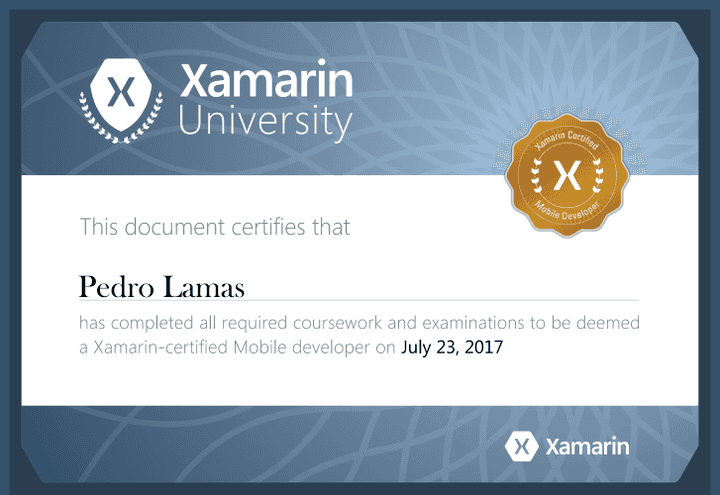
A couple of weeks ago I decided to enroll into Xamarin University and after a few classes and a final exam, I’m now a Xamarin Certified Mobile Developer!
I love Windows Development and make no mistake: I intend to keep writing and working with full native UWP!!
But at this time it makes complete sense for someone who works with XAML and C# to also learn Xamarin, as this is the best Microsoft has for cross-platform development!
Xamarin University was a really good experience and I can definitely recommend it to everyone: people that just started coding with .NET and C#, experienced developers who want to learn Xamarin, or professional developers that just want to get Xamarin certified!
Microsoft’s last update for the WP8.x operating system (dubbed “Update 2”) was more than 2 years ago… so even if the “official” support only now ended, I think we can all agree that unofficially Microsoft abandoned the OS a long time ago (mostly when they replaced it with Windows 10 Mobile).
My own experience with Windows Phone
Microsoft announced Windows Phone 7 at the Mobile World Congress in Barcelona, Spain, on February 15, 2010; I remember that the more I saw those screens and learned about the promised capabilities and technical details, the more I knew that I wanted to build apps for it, both as a hobby and professionally - and do so I did!!
When they released the first Windows Phone devices on October 21, 2010 in Europe, I went straight to a local shop and bought my very first Windows Phone: the magnificent Samsung Omnia 7.
Soon after that, Microsoft and Nokia got into a partnership to boost the operating system footprint, and as a consequence I ended up leaving Portugal and moving to Bristol UK to join the Nokia Music division, later known as MixRadio!
Nokia’s first Windows Phone was the Lumia 800, one of the best phones I have ever owned (I actually kept one of these as a souvenir)
By my account, throughout the years I owed and used at least 12 different Windows Phone devices, mostly due to my time as Nokia employee.
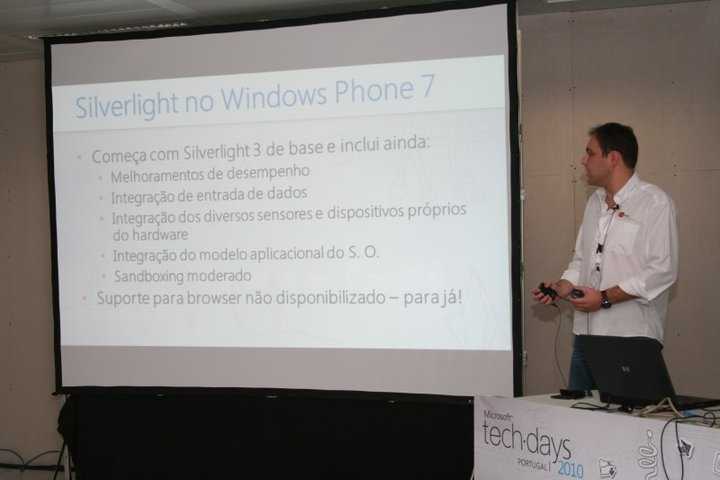
I also got to do a lot tech-talks on Windows Phone development, and participated in a few hackathons, helping the young and brightest with their projects.
“The King is dead, long live the King!”
Microsoft arrived late to the “mobile party” and made lots of mistakes (the lack of software upgrades for “older” devices, some less than a year old, being the biggest), but it was the lack of true first-party apps that caused users to lose interest in the phones and doomed the mobile operating system.
Windows 10 makes good on the promise of “one Windows for all devices”, but the mobile flavor never did get the same praise as the Windows Phone did - and I strongly agree with that!
I enjoyed all my Windows Phone devices, and I will miss using them a lot… but life goes on!
Cimbalino.Toolkit.Core now targets the .NET Standard 1.0
Cimbalino.Toolkit.Core will now behave as the rest of the toolkit in regards to throwing NotImplementedExceptions only on specific cases
Exposed overrideable async methods in ExtendedPageBase
Other fixes and improvements
From the above, I’d like to emphasise the huge advantage of supporting .NET Standard 1.0: this means you can now use Cimbalino.Tookit.Core in all .NET platforms: .NET Framework, .NET Core, and Mono!
A while back I wrote an article about the CultureInfo changes in UWP and how they affected the UWP apps.
Well, things haven’t changed much since then, and the information in that article still stands today!
However, Microsoft has since open-sourced the .NET Core Runtime (CoreRT), and that allowed me to take a peek under the hood to understand what is going on.
While looking at the CultureInfo.cs code, I noticed the following comment on the CurrentCulture property:
We use the following order to return CurrentCulture and CurrentUICulture
Use WinRT to return the current user profile language
Use current thread culture if the user already set one using CurrentCulture/CurrentUICulture
Use thread culture if the user already set one using DefaultThreadCurrentCulture or DefaultThreadCurrentUICulture
Use NLS default user culture
Use NLS default system culture
Use Invariant culture
This confirms our findings!
Looking on the CultureInfo.Windows.cs partial class, I noticed the #if ENABLE_WINRT on the top, which forces the first rule on that comment!
Further down in the same file, we find a GetUserDefaultCulture method which uses the GetLocaleInfoEx Win32 API to retrieve the locale name.
var resultCode =GetLocaleInfoEx(lpLocaleName, LCType, buffer, BUFFER_SIZE);
if(resultCode >0)
{
return buffer.ToString();
}
returnnull;
}
}
All you need is to copy the above to a file in your UWP project, and then call CultureInfoHelper.GetCurrentCulture().
I strongly advise using this new method instead of the “hack” I used in my previous article, as this is the same one that the .NET Framework relies on to retrieve the CurrentCulture information!
MSBuild based projects have two default build configurations: Debug and Release.
While these two configurations are enough for most projects, some might actually require custom build configurations that will support different environments, alternative build targets, etc..
Until now we could use Visual Studio Configuration Manager to easily create a copy an existing configuration setup, and then change small bits to match our specifications.
But now there’s a new csproj format for .NET Core, and while it includes the expected Debug and Release build configurations, the “copy configuration” process doesn’t work anymore!
The problem is that the new project format is based in quite a few implicit defaults, so Visual Studio Configuration Manager can’t actually create a copy of the existing build configurations with all the properties set.
Introducing the MSBuild Configuration Defaults
As I couldn’t find a way to “inherit” from the base Debug and Release build configurations, I tried to understand what properties were actually required on each of them, and then create some build scripts that would set them for me!
Those MSBuild scripts are available here and can easily be installed by running Install-Package MSBuildConfigurationDefaults on the Package Manager Console, or added with the Visual Studio NuGet Packages Manager.
After adding the NuGet package, I recommend closing and re-opening the solution to ensure that the build scripts are correctly loaded.
Usage
Once installed, any custom build configuration name starting or ending on “Debug” will have the following build properties set by default:
If any of these properties are set on the project, those values will have override the defaults above.
If you don’t want to name your custom build definition according to the rules above, just add a ConfigurationGroup property and set the value to Debug or Release to ensure those build definitions get the appropriate default properties set.
The following is an example of a custom build configuration called “Production”, that has the ConfigurationGroup set to “Release” (so it gets the default property values set as for the a “Release” build configuration), but also overrides the DebugSymbols property default value: